-Dynamic Registration is the preferred registration method for Moodle, as our design provides immediate integration for your institution. Additionally, you have the option to integrate all your Infobase products together, or to integrate an individual product.
-For general information and FAQs about LTI integration, please see this article.
Jump to:
Dynamic Registration (Preferred)
Manual Registration
Dynamic Registration
- Log in to your Moodle installation as an administrator.
- Navigate to 'Site administration' -> 'Plugins' -> 'Activity modules' -> 'External tool' -> 'Manage tools'
- In the Tool URL field enter:
https://lti.infobase.com/register - Click the Add LTI Advantage button.
-
In the popup window, log in using your Infobase admin credentials for the institution which you are setting up integration (the same credentials used to access the Admin Portal). For login assistance, please contact productsupport@infobase.com.
-
After logging in, you will be prompted to select your LTI tool, where the available options are based on your subscribed content. Please note that the option "Infobase Platform" is a unified experience that enables cross-brand search and shows all content together. Otherwise, you may select a specific product if you wish to integrate only one.
- You will then receive a confirmation message as shown here:
- After completing the registration steps, the tool will be immediately available to use. Please reach out to productsupport@infobase.com for any issues.
Manual Registration
- Log in to your Moodle installation as an administrator.
- Navigate to 'Site administration' -> 'Plugins' -> 'Activity modules' -> 'External tool' -> 'Manage tools'
- Click the 'configure a tool manually' link
-
In the resulting form. configure the tool with the following information:
-
Tool name:
Infobase Platform -
Tool URL:
https://lti.infobase.com/ -
Tool description:
Infobase’s new, integrated platform provides a streamlined and intuitive experience for accessing your digital collections. This platform focuses on improving usability and content delivery, making it easier for all of your users to navigate, search, and engage with high quality learning materials. -
LTI® version:
LTI® 1.3 -
Public key type:
Keyset URL -
Public keyset:
https://lti.infobase.com/keys -
Initiate login URL:
https://lti.infobase.com/login -
Redirection URI(s):
https://lti.infobase.com/ -
Tool configuration usage:
Show in activity chooser as a preconfigured tool - Default launch container: (your choice)
- Content Selection URL: (left blank)
-
Supports Deep Linking (Content-Item Message):
CHECKED - Content Selection URL: (left blank)
-
Icon URL:
https://assets.infobase.com/icons/infobase.svg -
Secure icon URL:
https://assets.infobase.com/icons/infobase.svg -
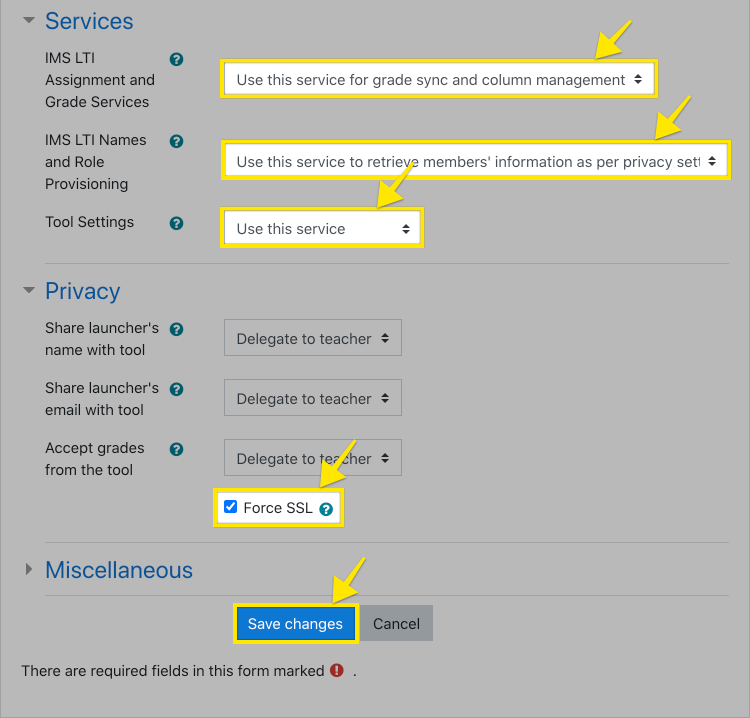
IMS LTI® Assignment and Grade Services:
Use this service for grade sync and column management<- This is needed if the assignments and grades service is going to be used. -
IMS LTI® Names and Role Provisioning:
Use this service to retrieve members' information as per privacy settings<- This is needed if the names and roles service is going to be used. -
Tool Settings:
Use this service -
Share launcher's name with tool:
Delegate to teacher(recommended) -
Share launcher's email with tool:
Delegate to teacher(recommended) -
Accept grades from the tool:
Delegate to teacher(recommended) -
Force SSL:
CHECKED
-
Tool name:
- Email the Client ID and the domain (URL) of your LMS to productsupport@infobase.com who will complete the connection. Please mention that you used the manual registration process. Support will confirm when the connection has been finalized.