-This follows the process for Blackboard Original but can also be applied to Blackboard Ultra.
-For guidance on embedding content within Blackboard, please see the Blackboard LTI 1.3 Overview.
-For general information and FAQs about LTI integration, please see this article.
Manual Registration
Install the tool into Blackboard:
-
Log in to the Blackboard LMS as an administrator and click on the 'System Admin' menu button

-
Navigate to 'Integrations' -> 'LTI Tool Providers'
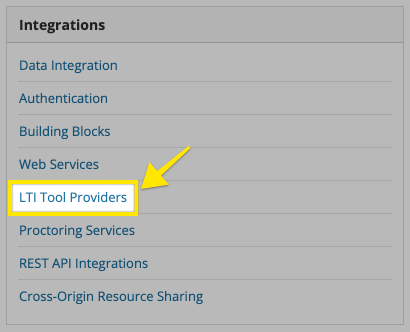
-
In the resulting 'LTI Tool Providers' page, click 'Register LTI 1.3/Advantage Tool'
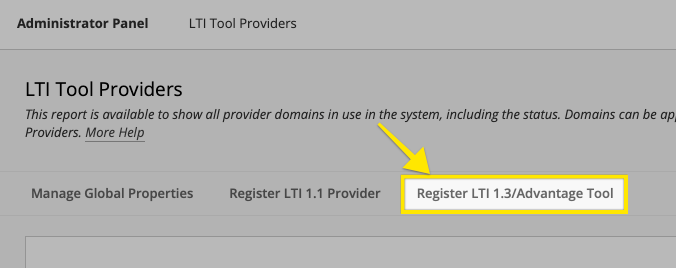
-
In the resulting page you will be prompted to enter a client ID.
enter the Client IDb424ce53-b1da-4999-90a1-8b1b25dd039cthen click 'Submit'. - This will bring you to a pre-filled 'Accept LTI 1.3 Tool' form. Please make sure the following settings are changed:
-
Tool Status:
Approved -
User Fields To Send:
Role in Course, Name, Email Address -
Allow grade service access:
Yes -
Allow Membership Service Access:
Yes
-
Tool Status:
- Then click 'Submit' at the bottom of the form.
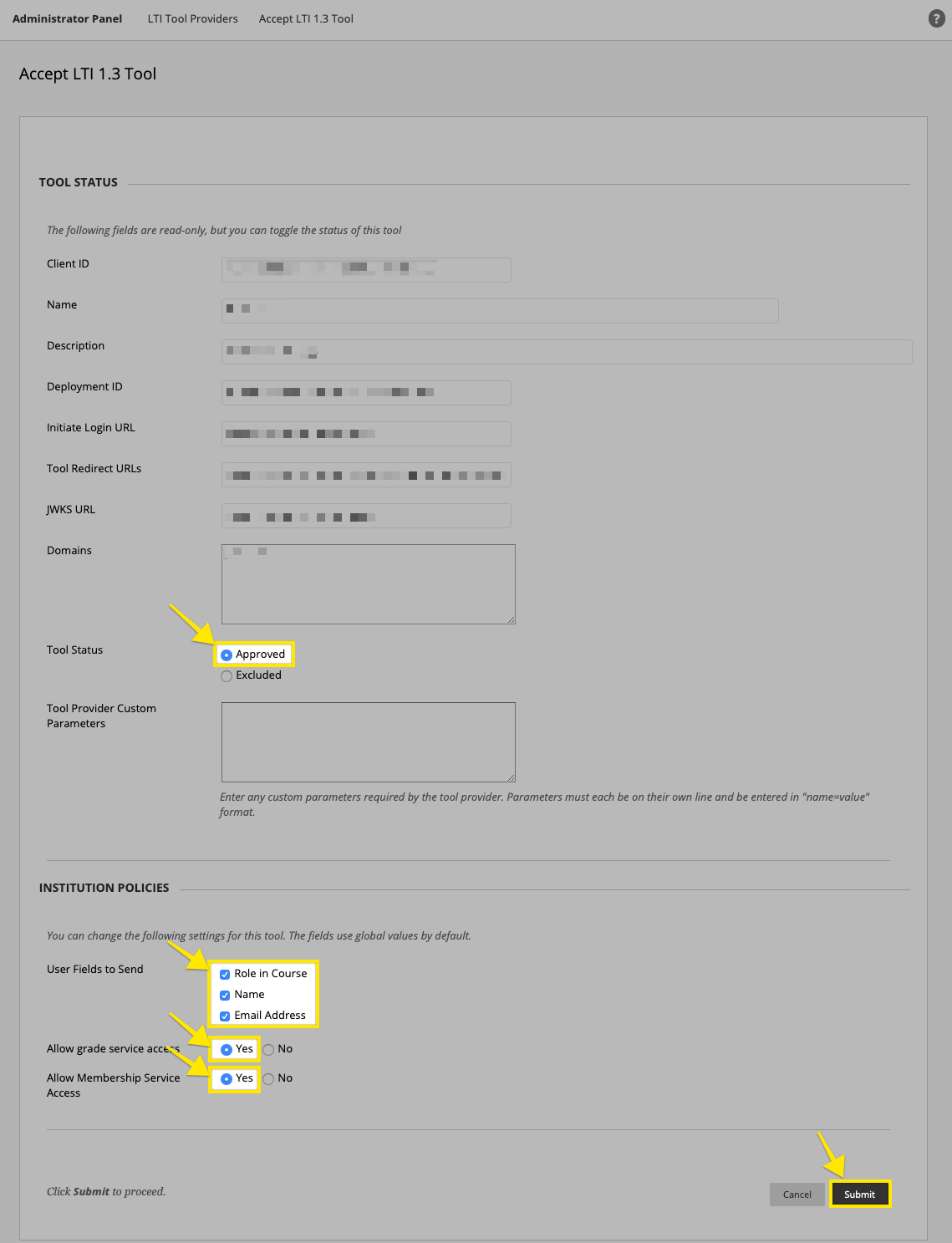
- This will generate a Deployment ID for the installation; please email this to productsupport@infobase.com so we can take the steps needed to complete the connection. Wait for confirmation from support before continuing to add placement(s).
Set up a placement for the tool:
-
Now that the tool is added to Blackboard, find it in the table on the 'LTI Tool Providers' table. Hover over its name and click on the small 'down arrow' to the right of the name. Then select 'Manage Placements'.
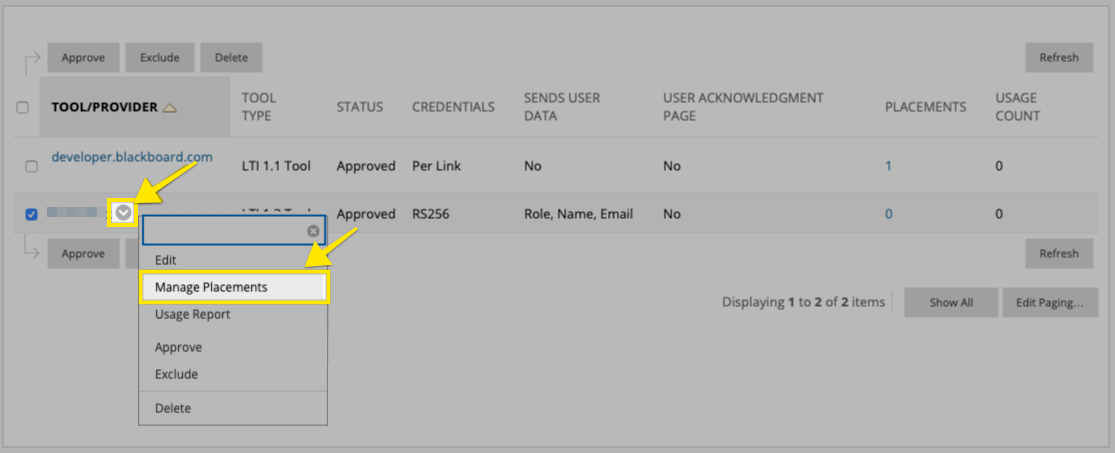
-
Click the 'Create Placement' button on the resulting Manage Placements page.
- Fill in the Placement form with the following information:
-
Label:
Infobase Platform -
Description:
Infobase’s new, integrated platform provides a streamlined and intuitive experience for accessing your digital collections. This platform focuses on improving usability and content delivery, making it easier for all of your users to navigate, search, and engage with high quality learning materials. -
Handle:
InfobasePlatform -
Availability:
Yes -
Type:
Deep Linking content tool (+ Allow student access) -
Type:
Course content tool (+ Allows grading)<- If you are using the assignments and grades service. -
Type:
Course tool (+ Allow student access)<- If you are using a basic launch only. -
Target Link URI:
https://lti.infobase.com/Then click 'Submit'
-
Label:
Perform a test launch:
- In Blackboard, go to a course and then select 'Content' in the left hand menu.
-
In the Content Page, select 'Build Content' -> 'Infobase Platform'.
- You should then see the app running inside Blackboard. For any issues, please contact productsupport@infobase.com.